In this article, we'll walk through how to easily create a blog using WordPress hosting. Unlike free blogs from WordPress or Blogspot, this guide focuses on building a blog with your own domain name and hosting that is purpose-built for WordPress.
What is a Blog?
Have you ever heard the word "blog"? You might have heard of people who became successful because of their blog. The definition of "success" varies — for some it's earning money from blogging, for others it's gaining fame.
Take Raditya Dika, who is well-known today as an actor and comedian. He used to be a blogger (someone who writes blogs) and a skilled writer. Or perhaps you've heard of Gina Trapani, a blogger whose average earnings are around $110,000 per month. Tempting income, isn't it?
But don't dream too far yet. The most important thing right now is to invest some of our free time in writing a blog. Who knows — one day you might become one of those successful bloggers too.
The word blog is short for web log — in other words, a blog is a log of personal experiences recorded and published on a website. A blog is essentially a journal in website form, displayed in reverse chronological order. This means the most recent posts appear at the top.
Yes, it's that simple. A blog is just writing down our day-to-day experiences in the form of a website — experiences worth publishing, of course. The things you write will be read by other people (visitors). And the more interesting and inspiring your experiences are, the more readers you'll attract. Your blog generates traffic, and in the world of websites, traffic means money.
For example, suppose you visited a place. You wrote about your journey — whether it was interesting or not, the ups and downs, every detail of your trip. You may not realize it, but your experience can help others make decisions. Many people will search through search engines and find your blog. Yes, it's that simple.
If you read Gina Trapani's profile that I mentioned earlier, she simply writes about her daily experiences. And she generates fantastic income just from writing.
So, perhaps this is the right time for you to start writing a blog.
Why Blog?
If you read the section above about what a blog is, you've probably already gotten a sense of why people write blogs. There are many benefits to blogging — both for yourself and for others. Here are some of them.
- Personal Notes. Writing a blog means recording your daily personal experiences. If those experiences are about trials or personal research, you might forget them in 2–3 years. With a blog, you can revisit all your experiences. Imagine writing in a diary, and that diary being published for the world to see.
- Helping Others. Because your experiences are published and read by others, people can benefit from what you've shared.
- Learning More. By blogging — especially when you want your articles to be more complete and clear — you'll end up learning things you didn't know before. I personally believe blogging significantly expands one's knowledge.
- Becoming a Better Writer. Blogging is inseparable from writing. You become accustomed to writing, and you sharpen your writing skills along the way.
- A Promotion Channel. Once your blog gets popular and you have products related to your blog's topic, it's easy to promote those products to your readers.
- Inspiring Others. Your blog may contain your ideas and creativity. This inspires readers — and without realizing it, you've helped others with your ideas.
- Earning Extra Income. This is the final benefit. Once your blog gains popularity, monetizing becomes much easier — be it through Google AdSense ads, affiliate marketing, product reviews, or even invitations to speak at seminars and workshops.
In this how-to-make-a-blog article, I'll try to walk through how to start a blog with WordPress all the way to earning money from it. However, I suggest you don't focus too much on the money — stay focused on writing. The income that follows will come naturally as a result of your hard work in blogging.
Why WordPress?
The blogging platform I chose for this article is WordPress. Not without reason, of course. According to Kinsta statistics, WordPress is the CMS (Content Management System) for blogs with around 60% market share. Thanks to its popularity, roughly 34% of websites online in the world are built using WordPress.
In short, WordPress is a blogging platform that's been widely used around the world. WordPress is open-source, so many developers contribute to its development.
That said, there is no denying that — because WordPress is the most widely used and open-source platform — its bugs are also easier to discover. This makes WordPress sites slightly more prone to being hacked.
But don't worry — this how to create a blog article will also discuss how to properly secure your WordPress blog.
Why Self-Hosted?
WordPress itself provides free hosting to run your blog. However, of course, there are some drawbacks to their hosting. In several aspects, self-hosting is more advantageous than WordPress's built-in hosting.
WordPress provides free hosting via the wordpress.com domain. You can register and create a blog there. The common downside is that the domain name uses a subdomain. So if you want to create a brand called "blogaku", for example, you'll get a subdomain like blogaku.wordpress.com — which is slightly longer.
If self-hosted, you can get a clean name directly, for example blogaku.com, blogaku.my.id, or other domain extensions of your choice. This of course helps build your brand much better.
Additionally, with the free hosting version you'll find it hard to customize your blog. Only a limited number of plugins and themes are provided, and you can't upload themes of your own. With self-hosting, you're free to customize anything on your WordPress blog.
I personally believe self-hosted WordPress is better than the free WordPress version. There are many other reasons that probably won't be discussed in depth in this article.
How to Create a Blog with WordPress Hosting
Now that you have a picture of what blogs and WordPress are, let's try to build it step by step. If you have questions or get stuck anywhere, please post in the comments at the bottom of this article.
Choosing a Hosting
The most important thing when creating a self-hosted blog is choosing the right hosting. Hosting is the lifeblood of your blog. Good hosting will help your blog rank better in search engines.
WordPress has its own criteria and needs special hosting that's well-suited to it. In this case, I recommend you use WordPress hosting from IndoWebsite — because it already meets all WordPress's requirements.
WordPress Hosting from IndoWebsite is hosting tailored specifically for the WordPress CMS. WordPress Hosting greatly helps optimize your WordPress site. This hosting comes with LiteSpeed Web Server, Clustered MySQL, and Memcache.
Choose Starter or WP-Medium if you're a WordPress beginner. Adjust to your budget.
To order, visit IndoWebsite's site (www.indowebsite.co.id) and ask directly via the chat with marketing or customer support in the bottom-right of the page.
This article will also discuss optimizing the site using LS Cache (LiteSpeed Cache) and Memcache — which might not be supported on other web hosts.
Install WordPress
If you're using IndoWebsite's WordPress hosting service, you can skip this step. Once your service is active, WordPress will be installed automatically — you just need to log in directly to WP Admin.
However, if you're not using IndoWebsite's WordPress hosting (or you're on a different IndoWebsite plan), you'll need to install WordPress yourself.
The installation process itself isn't too difficult. You can install it using Softaculous Installer from your cPanel. Or, you can install it the slightly harder way — manually.
Install WordPress with Softaculous Installer
Installing WordPress with Softaculous is very straightforward. Log in to your cPanel and click the Install WordPress icon at the bottom of your cPanel.
 cPanel Install WordPress
The Softaculous Installer page will appear. In the left menu, select Blogs (1) → WordPress (2). Then click the Install tab (3), and click the Install Now button (4).
 Softaculous Installer WordPress
Software Setup
Next, you need to fill in your site's details. Fill it in according to your blog's theme.
- Choose the version you want to install. Pick the highest version available — i.e. the latest version of WordPress. At the time this how-to-create-a-blog article was written, the latest version was 5.2.2.
- Choose Installation URL. This field configures the URL (Uniform Resource Locator) for the WordPress install.
- In the protocol field, pick https as the primary protocol. https is the secure version of http and requires an SSL certificate. Don't worry though — if you use WordPress Hosting from IndoWebsite, all plans include a free SSL certificate. You can also use the https://www protocol if you want a www prefix. Pick whichever you prefer.
- In the Choose Domain field, enter your domain name.
- Leave the In Directory field blank. This means the installation will happen at the root domain.
Did you know that Google has announced that websites using SSL are ranked higher than websites that don't?
Site Settings
In the site settings we'll configure the site name and description. This is quite important because we're building the brand of the blog we're about to create.
- Site Name. Enter your site's name, e.g. "Perjalananku" ("My Journey"). Try to keep the site name under 2 words.
- Site Description. This is your site's tagline. For example, if your site name is "Perjalananku", a tagline could be "Memorable Travel Stories". Fill it according to the content and theme of your blog.
- Enable Multisite (WPMU). No need to check this, because we're creating a single-site blog.
 WordPress Install — filling in Softaculous
Admin Settings
In the admin settings, you'll enter the username and password used to log into the WordPress dashboard. Pick a username and password of your choice. Our advice: for the admin username, use something other than "admin" or "administrator", because those usernames are easy for hackers to guess via brute-force attacks.
- Admin Username. Enter the username for logging into WordPress. Use one that's not easy to guess.
- Admin Password. Enter the password of your choice. Use a combination of letters and digits. Also mix uppercase and lowercase, plus special characters like
#,*and others. Use a minimum of 8 characters for better security. - Admin Email. Enter your active email address. This is useful for update notifications or WordPress security information. It's also used to reset your password if you ever forget it.
Some themes will display your photo on WordPress posts. If you haven't configured a photo, what shows up is the blank avatar generated by WordPress. If you want to show your photo, register the active email that's connected to the admin email on Gravatar. Your photo will appear on posts according to what you configured on Gravatar.
Language Selection
For the language option, pick the language that matches your blog's language. If your blog is in Indonesian, pick "Indonesian" as the primary language. Picking the right language is important so search engines can more easily detect your blog's language.
Choose Pre-Install Plugins
Softaculous offers an option to install plugins of your choice when your blog is installed. However, in this how-to-create-a-blog with WordPress article, we'll install WordPress without any plugins. Plugins of choice will be installed later from the WordPress dashboard after we log in to wp-admin.
For the plugin selection, leave them all unchecked — do not check any plugin.
 Fill in WordPress install details with Softaculous
Once all the fields are filled in, click the Install button and wait for the installation to finish.
At this stage, the WordPress installation with Softaculous is complete. You can log directly into wp-admin and continue to the initial WordPress configuration section.
Install WordPress Manually
The manual WordPress install option is only needed if your web hosting provider doesn't offer a Softaculous auto installer. It's of course harder than using the auto installer. Follow this how-to-create-a-blog with WordPress article step by step carefully.
Create a MySQL Database
Log in to your hosting's cPanel, then go to the Database tab and click the MySQL Database Wizard icon.
 Choose MySQL Database Wizard
A new page will appear for entering MySQL database information. In step one, enter your database name, e.g. wpku. Then click the Next Step button.
 Step 1 — Create Database
In step 2 of database creation, you'll be asked to enter a password. Create a secure MySQL password.
 Step 2 — Create Database User
Or, for better security, use the automatic password generator by clicking the Password Generator button. The cPanel system will generate a random password — copy that password and save it in a temporary note.
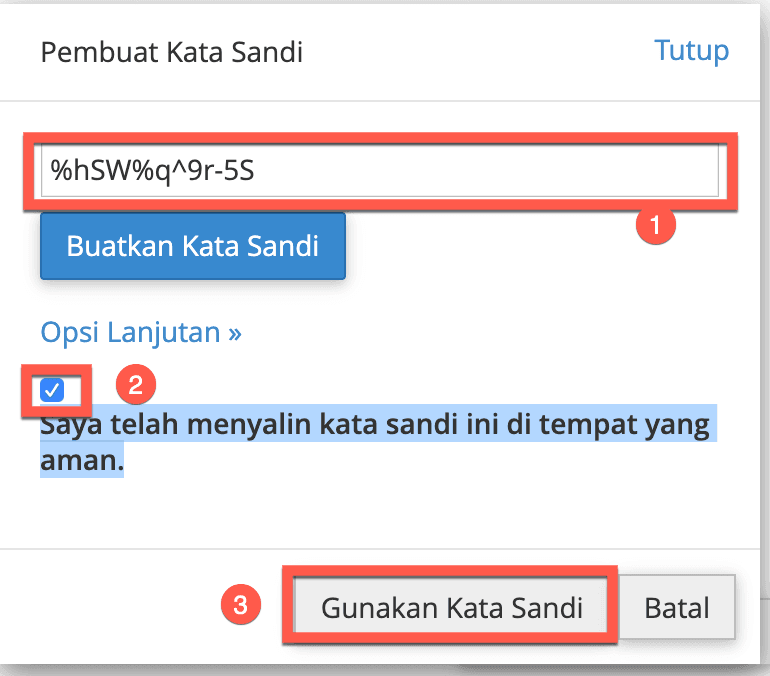 Automatic Password Generator view
Remember, the password must not be lost — save it in a dedicated note. Once you're sure, check the option "I have copied this password in a safe place.", then click Use Password.
After that, click the Create User button. Next, the database privilege options will appear. Choose "all privileges" to grant every available privilege. Then click Next Step.
 Step 3 — Choose Privileges
The next page just confirms that you've finished creating the database. It will show your database name and user account. Note them down and save them in temporary notes, together with the password you already noted earlier.
Download WordPress
Next we'll download the WordPress source from wordpress.org. You can directly download the latest WordPress version from the Download WordPress page. The downloaded file is in .zip form. Save it temporarily to your computer. Next, we'll upload that file to the hosting.
Upload WordPress
Now, go back to your cPanel, then go to the File tab and click on the File Manager icon.
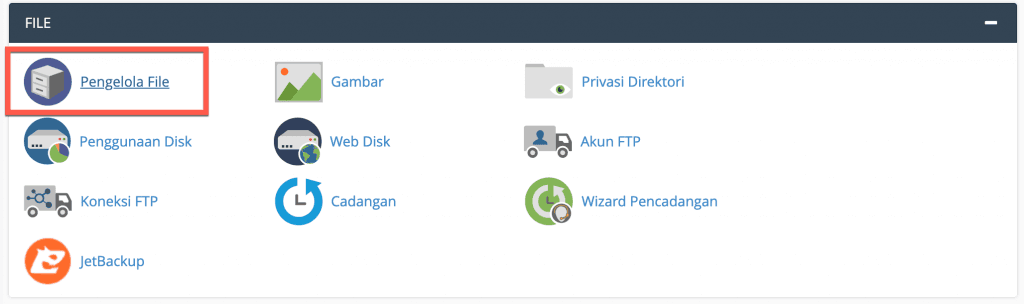 Choose File Manager
A new window will appear that contains the file manager. Enter the public_html folder — we'll work in that folder for the site with the primary domain name of the WordPress install. After entering the public_html folder, click the Upload button, then select the WordPress file that you downloaded earlier.
 Upload WordPress file to cPanel
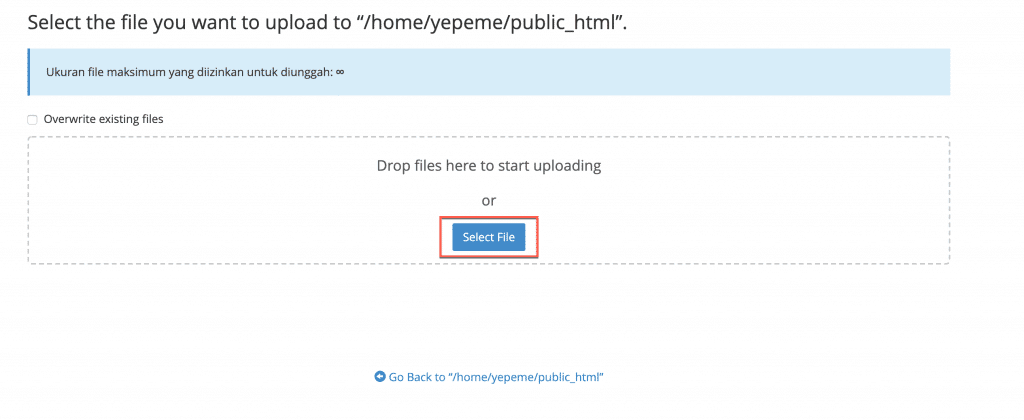 Choose the WordPress file
After the upload succeeds, go back to the file manager page. Still in the public_html folder, you'll find the WordPress .zip file that was successfully uploaded. Next, we'll extract that .zip file.
Extract the File
Click on the uploaded WordPress file, then click Extract, then confirm by clicking the Extract File button. The cPanel system will extract the file into a folder named wordpress.
 Extract WordPress file
At this point, you can't yet continue the WordPress install. You have to move the contents inside the wordpress folder directly to the public_html directory.
Move the Files
To move the files, we'll use a fairly easy method. Open the wordpress folder by double-clicking it. The folder's contents — WordPress core files and folders — will appear. Select everything by pressing the "select all" menu button, then click and drag them to the public_html directory next to it. The system will automatically move all files into the public_html folder.
 Move files to public_html with click & drag
Or, the file move can also be done by clicking the Move menu, then filling in the move form with just public_html.
 Move files to public_html via the move action
At this stage, the file-manager part of the process is done. You can delete the wordpress folder and the .zip WordPress file you uploaded earlier — we won't need them going forward.